
Manual Start here
Install, step by step
Every screen you will see from the download to your first dictation, with pictures.
This is the whole first-run, screen by screen. It takes about ten minutes, most of it waiting for two downloads. The pictures are from version 1.1.2.
Before you start
- A Windows 10 or 11 PC (64-bit) with about 5 GB of free disk space.
- Ten minutes and an internet connection for the model downloads. After that, Neato Echo works offline.
1. Download the installer
Go to echo.neatoventures.com and click Download. You get a file named Neato-Echo-Setup-<version>.exe in your Downloads folder. Open it.
2. Windows asks if you are sure
Windows SmartScreen shows Windows protected your PC. It appears because Neato Echo is not code-signed yet, not because anything is wrong with the file.
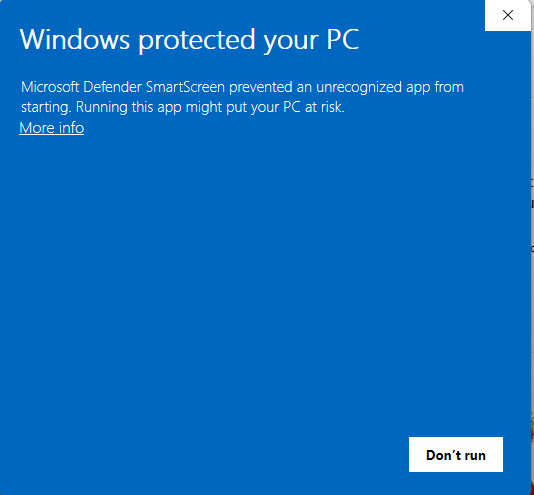
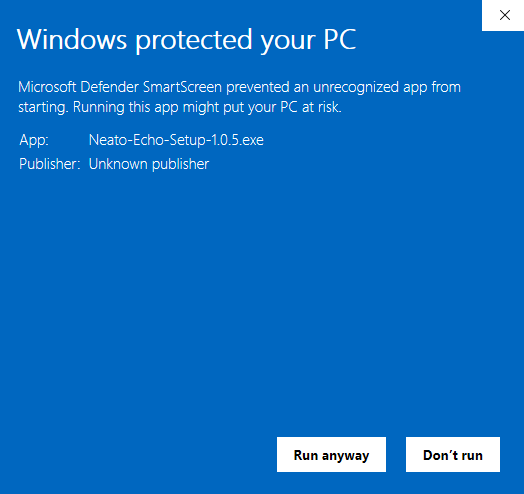
Click More info. The dialog now shows the file name and Publisher: Unknown publisher. Click Run anyway.
3. Choose who it is for
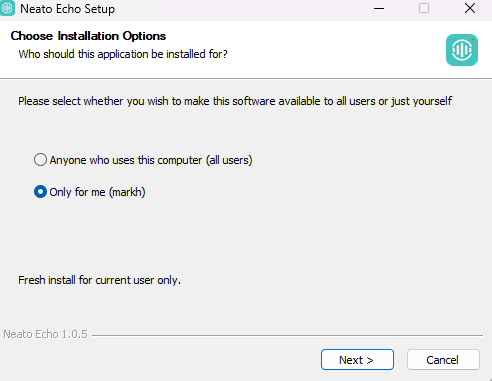
Keep Only for me and click Next. Installing for all users needs an administrator and puts the app under Program Files for every account on the PC.
Windows then dims the screen and shows a User Account Control prompt: "Do you want to allow this app from an unknown publisher to make changes to your device?" Click Yes.
4. Choose the folder and install
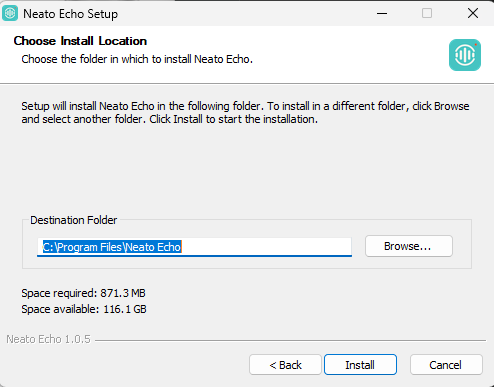
The default folder is fine. Click Install. Setup needs about 900 MB for the app itself; the speech and summary models come later.
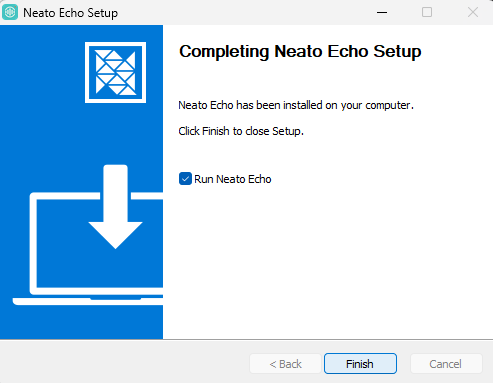
When it finishes, leave Run Neato Echo ticked and click Finish.
5. Allow the microphone and screen context
The first app screen asks for two things.
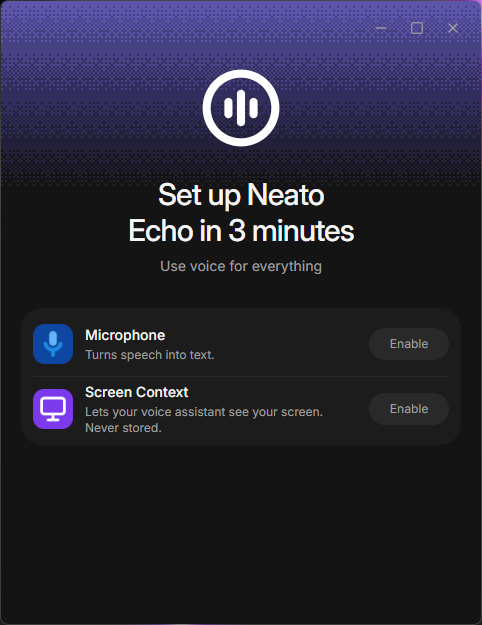
- Microphone turns your speech into text. Required.
- Screen Context lets the voice assistant see the screen you are looking at when you ask it something. Optional, and nothing is stored. You can turn it off later in Settings.
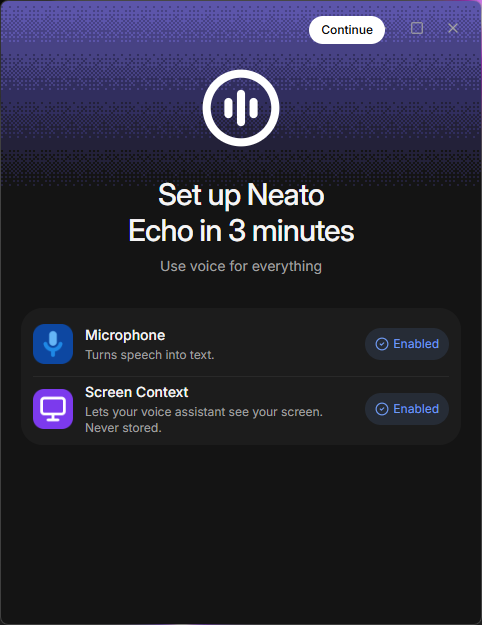
Click Enable on each, then Continue at the top right.
6. Pick your dictation shortcut
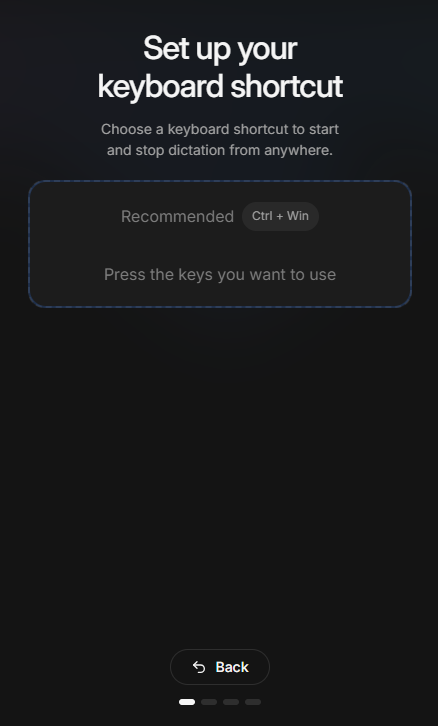
This is the key you will press to start and stop dictating in any app. The recommended shortcut is Ctrl + Win. Press the keys you want to use; the box records them.
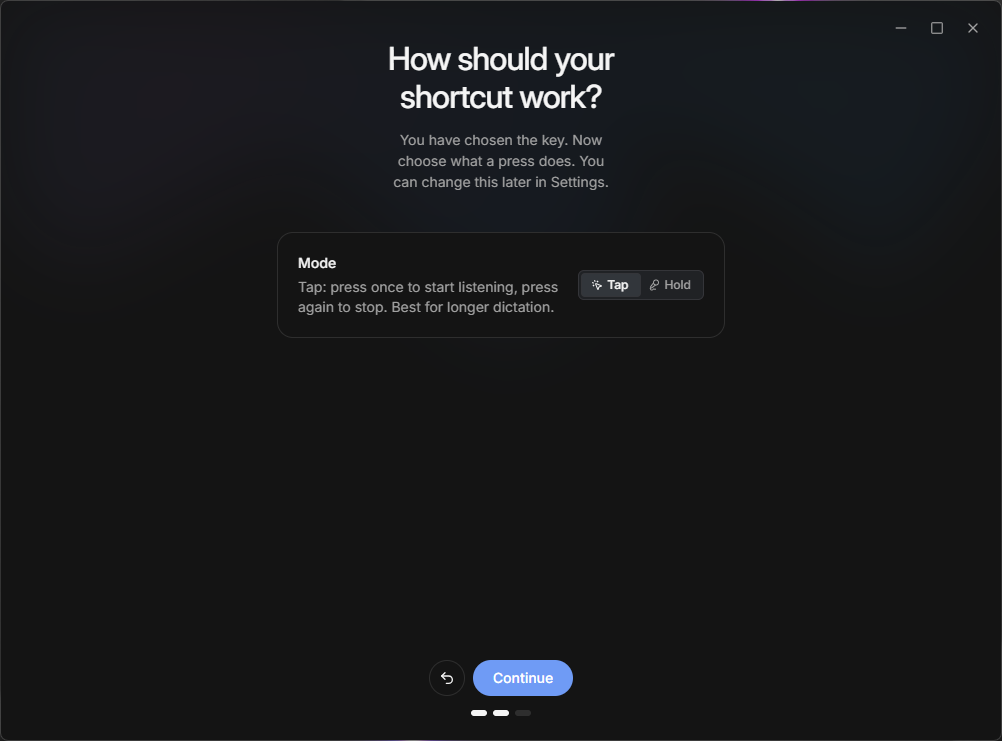
7. Tap or hold
Choose what a press does. Tap starts listening on one press and stops on the next, which suits longer dictation. Hold listens only while you keep the keys down, like a walkie-talkie. You can change this later in Settings, Hotkeys. Click Continue.
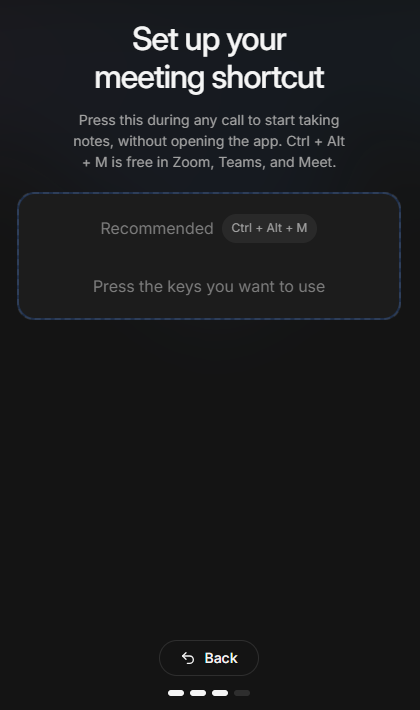
8. Pick your meeting shortcut
This key starts meeting notes from inside any call, without opening the app. The recommended shortcut is Ctrl + Alt + M, which is free in Zoom, Teams, and Meet. Press the keys you want to use.
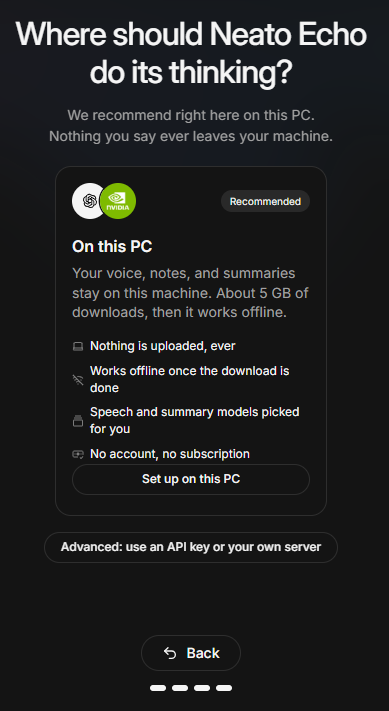
9. Choose where Neato Echo thinks
Choose Set up on this PC. Everything you say stays on your machine, there is no account, and it works offline once the downloads finish. The Advanced option is for people who want to use their own API key with a cloud provider instead; see Cloud vs local processing.
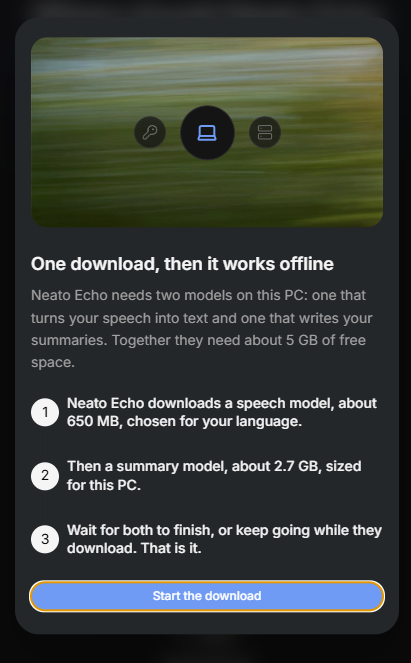
A short explanation appears: a speech model chosen for your language, a summary model sized for this PC, and about 5 GB of free space between them. Click Start the download.
10. Wait while your PC gets ready
Neato Echo picks both models for you and downloads them at the same time. Nothing to choose here. The two rows show progress, and a small panel at the bottom right tracks each download.
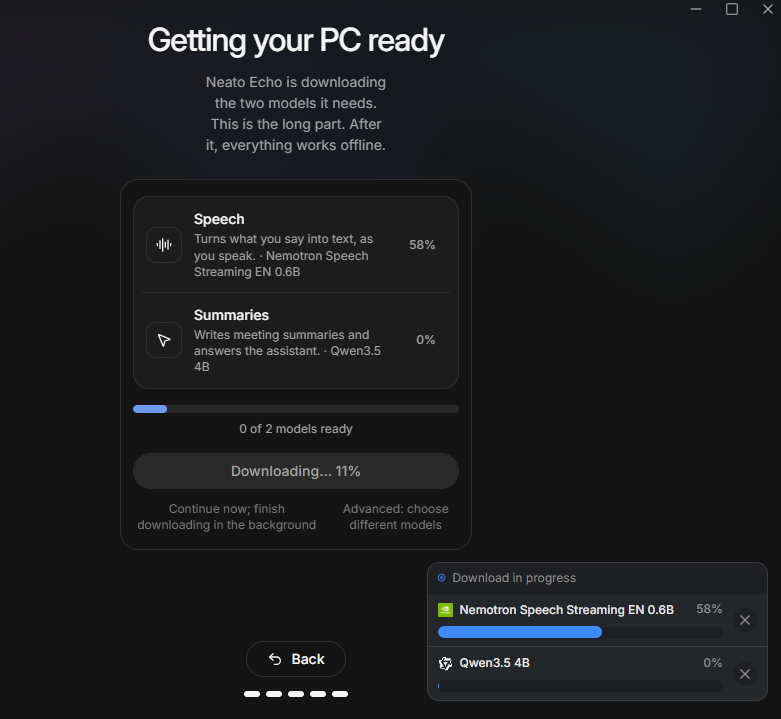
The summary model is about 2.7 GB, so this is the long wait. You can click Continue now to go ahead while it finishes in the background; the models switch on by themselves when done. Advanced: choose different models opens the full picker if you know you want something else.
When both rows say Ready, click Start using Neato Echo.
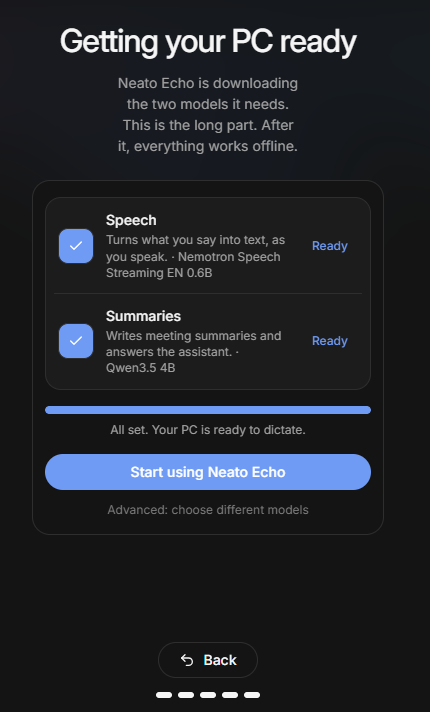
11. You are in
The Home screen opens. Two things to notice:
- GPU acceleration available: if your PC has a capable graphics card, click Enable GPU for faster transcription. Not now is fine; you can do it later in Settings, Speech-to-Text.
- Connect your calendar: optional. It titles your meeting notes and lists what is coming up. See Connect Google or Microsoft calendar.
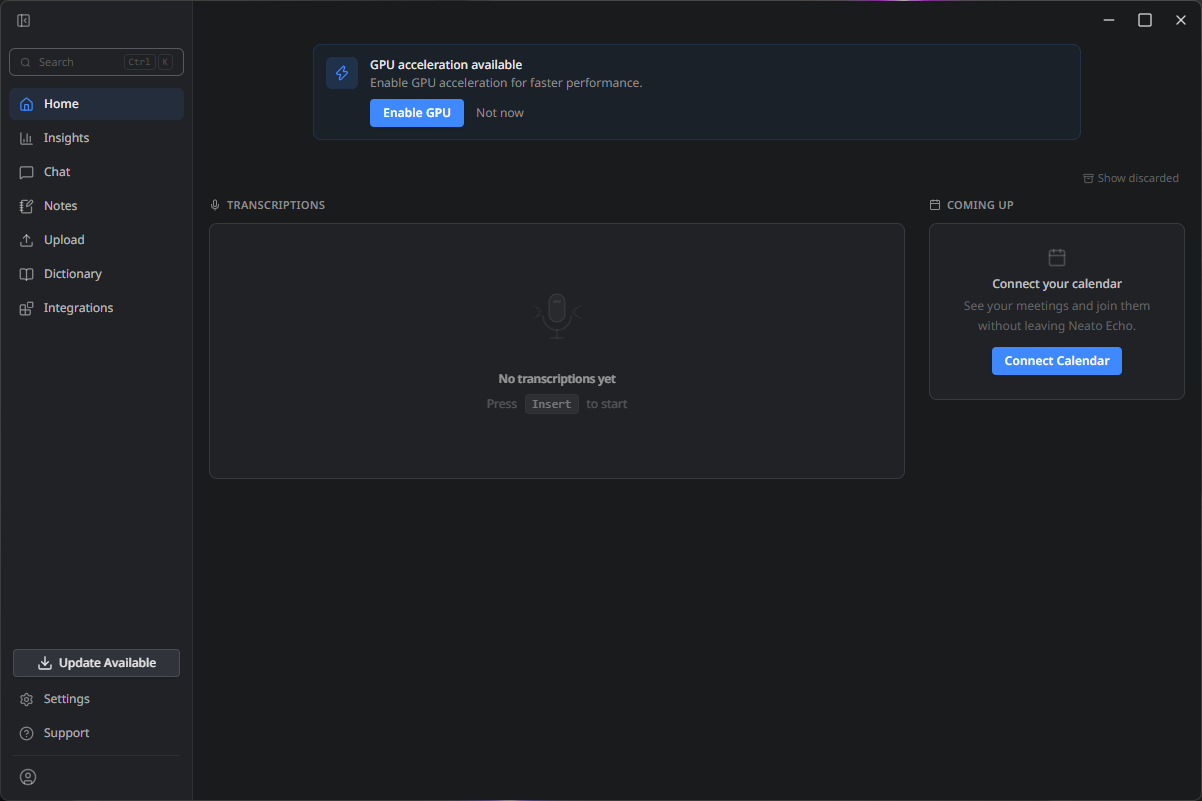
The "Press Ctrl+Win to start" hint under Transcriptions names your dictation shortcut.
12. Your first dictation
Click into any text box, for example a new email. Press your shortcut, say a sentence, and press it again (or let go, in Hold mode). The words appear at your cursor.
The very first dictation after install can take longer while the speech model loads. After that it is quick, and with the live preview on you see the text build while you talk.
Related
Your hotkeys
What each shortcut does and how to change it.
Record a meeting
Take notes on a call and get a summary at the end.
Local models
What the speech and summary models are and how to switch.
Common problems
Start from the symptom if something is not working.
Still need help?
Write to [email protected] with your Windows version, your Neato Echo version (Settings → System), and what you were doing. A person reads every message.